Hack The Box Machine: OpenSource
Initial Recon
nmap
As is common with these, I began with an nmap scan to see what ports are open. I use a script called nmapAutomator to help automate some of the basic vulnerability scans. It return that port 22 (SSH) and port 80 (HTTP) were open. It also ran a service and vulnerabily scanner, as well as recommending intial recon commands to run. According to the outputs, the website is running in Python, which can be identified by the nmap script scan server string of Werkzeug/2.1.2 Python/3.10.3. Werkzeug is a WSGI implementation, which is part of Django.
Navigating to the site
When I navigate to the site, I get a website called upcloud, which appears to be a file sharing service. 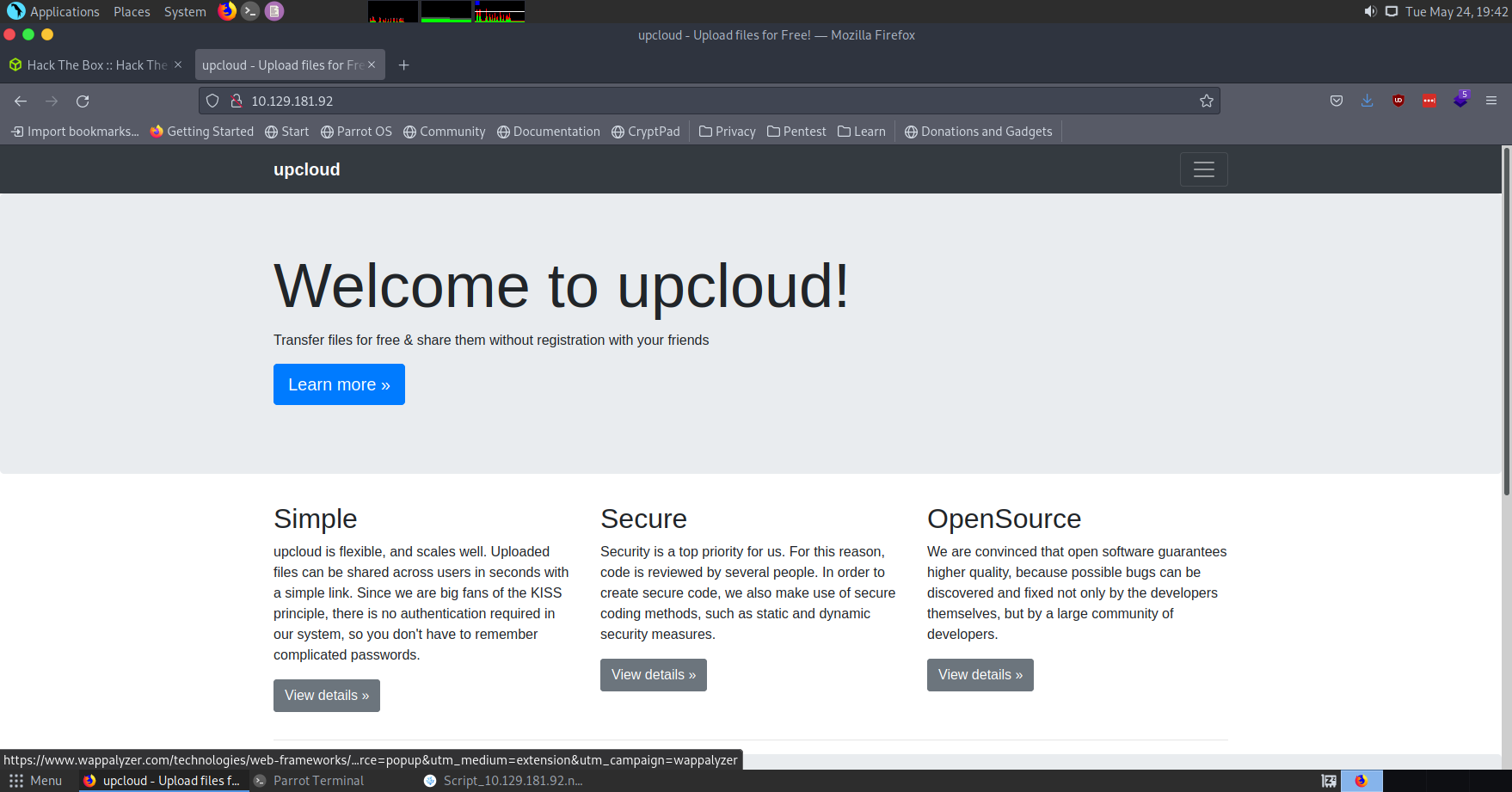 Most of the links lead nowhere, but there appears to be two active links, one being a zip file to download, and the other being a instance of upcloud allowing me to upload files.
 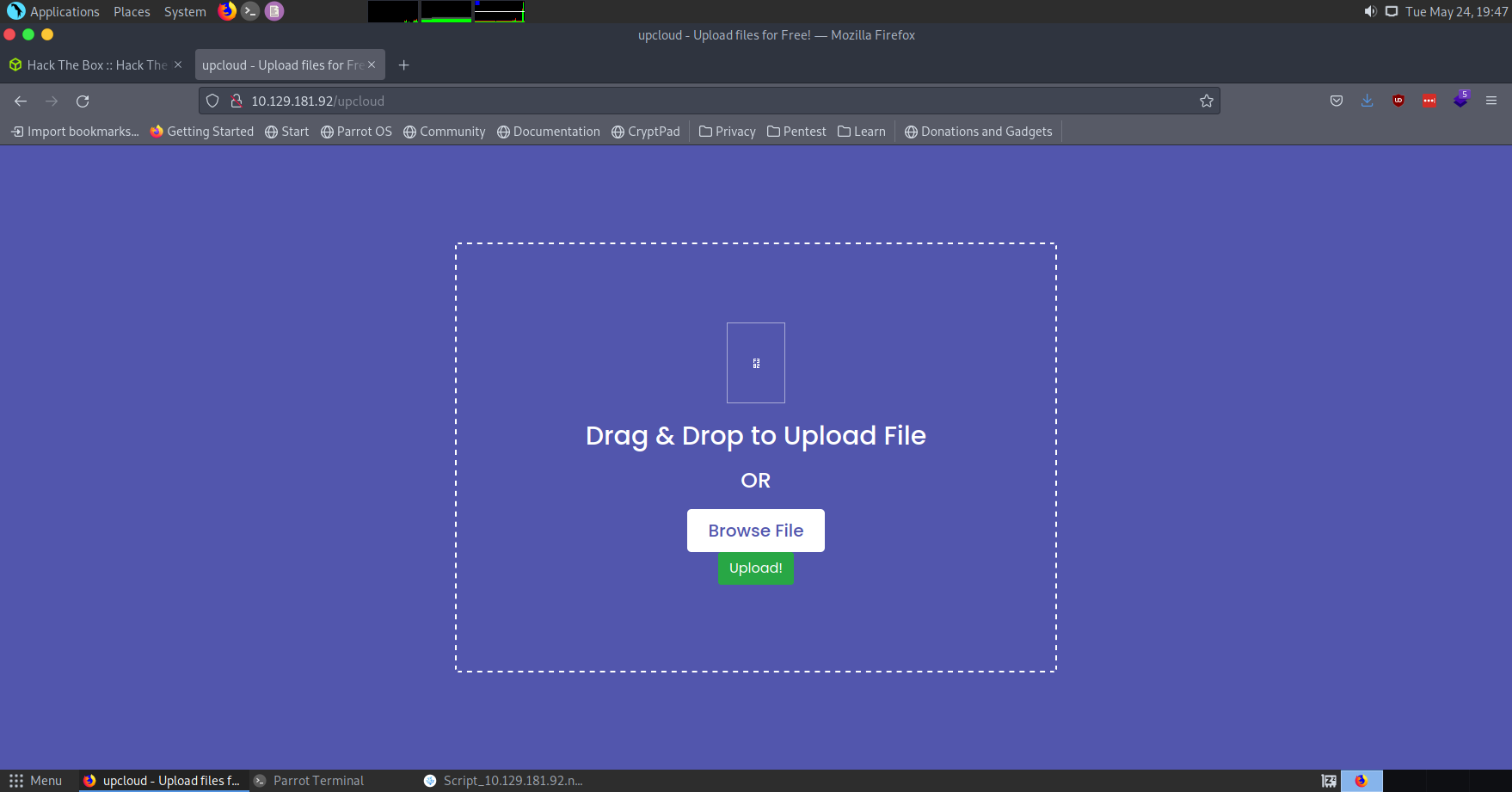 At this point, I am assuming that there must be some way to deploy a reverse shell or similar through this portal. However, my best method to figure out how this site works is by using the zip download, which is named source.zip While I’m on the site, I also check Wappalyzer to see what frameworks this site is using, and it confirms that it is running in python, and also tells me that it is using the Flask library set.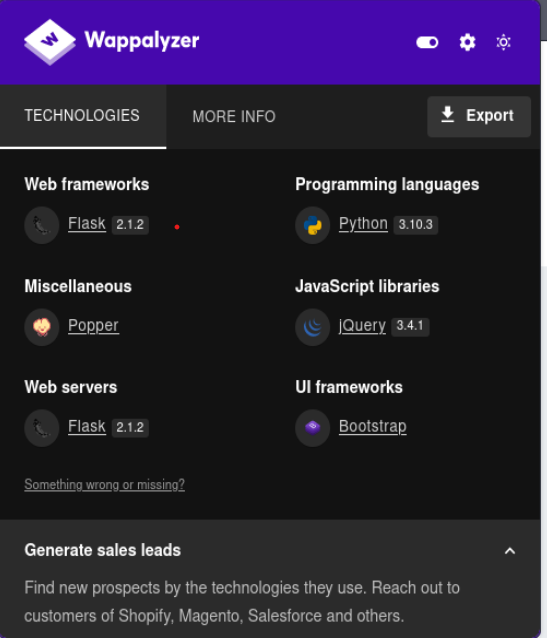
Investigating the source
Initial impressions
Imediately, I see that this is running in docker, shich tells me that I may have to break out of a docker container to the host machine. We will have to see that when we get a foothold on the system. It is built using the python:3-alpine image, and using supervisor and flask. It is in python, and I need to dig deeper to determine exactly what it does with the uploaded files
Deeper dive
It appears to immediately clear all instances of ../ from the filename, which means that I can’t just upload a ssh public key to the correct location. However, it doesn’t appear to change it if it starts with /, so I may be able to exploit this as a way in. It also appears to overwrite any existing files with the same filename, as they haven’t yet implemented the code to add the date into the filename to make it a unique name. I do however see now that it further modifies the filename in another file by the command os.path.join(os.getcwd(), "public", "uploads", file_name), which means that I will not be able to take advantage of any leading /s.
Uploading a reverse shell
I decided to upload a python reverse shell, then try to download the file and see if it would run it. Unfortunately, it only downloaded it. However, I am going to try replacing the views.py file to see if I can force it to load my shell.
Distracted by nmapAutomator
It found something!
The entire time I have been digging through the source of the program, nmapAutomator has been continuing to run scans, and having completed the nmap scans, moved onto gobuster and nikto. Nikto found a very intersting url of opensource.htb/console, which appears to be a python console in the browser that requires a pin to access. I tried common pins of 1111 and 1234, but didn’t get anywhere. I found the documention for this console at https://werkzeug.palletsprojects.com/en/2.1.x/debug, and it specifies that the pin is randomly generated, and if an incorrect pin is entered to many times, it will result in the server having to be restarted. However, this has to be my way in. I just have to aquire that pin, or find a way past it.
Bypassing the pin
I initially tried bypassing the pin. I used inspect element to delete the pin prompt and tried typing into the console behind it, but it just gave me errors.
Foothold
Reverse shell worked
Replacing views.py worked, and I now have a reverse shell on the box. I used Burp Suite to change the filename of the file before it was sent to the server via a POST request. By changing the filename to ..//app/app/views.py, it replaced the views.py. I didn’t just replace it directly with a reverse shell, I modified the file to only attempt to run the reverse shell at opensource.htb/shell, just in case I needed access to the upload portal later. I expand the reverse shell, and my normal command doesn’t work because the docker container doesn’t have bash installed. However, if I replace /bin/bash with /bin/sh it works.
Escaping the docker container
Next, I need to escape the docker container and reach the host. First thing I notice is that when I run ip a, it returns that the ip address of this container is 172.17.0.3, which is interesting because docker assigns ports sequentially, which tells me there is another container at 172.17.0.2. I can ping this container, and by port scanning with netcat, I can determine that there is an http server running on this box. Unfortunately, this webserver turns out to be hosting the website I could see when I navigated to the ip address, and is thusly completely useless. However, when I take a closer look, there is a port on the docker host, at 172.17.0.1, that is open that did not appear open from my host machine (port 3000). Now, i need to see what is there. I wget it, just to see the contents, and see that it is gittea. This is a big deal, and could container more details on the source or other things. Now, I tunnel the ssh out of there with chisel, which allows me to view it from my personal machine. In order to get Chisel onto the machine, I simply uploaded it through the upload portal, as I kept that working and that is easier than the normal methods to get it to the remote machine. I now have access to the gittea
GitTea
GitTea login
I now am at the homepage to the gittea, but I need to figure out the login. I have the username, dev01, I just need to figure out the password. I decide to do a bit more digging in the source, and realize that the source code was actually a git repo. Time to look at commits. I found multiple other branches, and in the dev branch I found a commit where they removed settings.json. Settings.json contained a login for gittea, so time to go to work in gittea.
Exploring GitTea
I’m into gittea. Lets see if I can get into the host machine now.
Well, that was easy. He put his id_rsa private key into a git repo. I’m in as the user. I can now turn in the user flag.
Root
Recon
First thing I do is run docker ps, as if I had permission to access docker I could get root through it. However, unfortunately I am not a member of the docker group. Next, I run apt list –upgradeable, as I would like to determine what is out of date hoping it will be vulnerable to pwnkit. It is not, however. Next I run linpeas, and while linpeas doesn’t return anything, it does make me realize something. My home directory is a git repo, as evidenced by where I found the id_rsa, and it appears to be auto commiting. Let’s try adding something to run before commit and see what happens. I add the command chmod -R 777 /root, in the hopes that it something would happen and I could access the root user. It worked! I can now read everything except for the root flag. Fun. However, I could read roots .ssh folder, and it had a id_rsa file, so lets see if that works. That didn’t work either. Lets try this the right way and run a reverse shell from this. It worked! I am root. I can now enter the root flag